
How to: Turbo Charge Self Hosted WordPress Sites

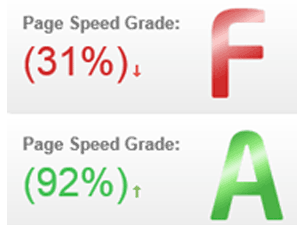
What is your Website Speed Grade?

If you are facing the problem of slow loading self-hosted WordPress website, or simply want to improve your user’s experience by minimizing loading times? Here are a few great suggestions on how to turbocharge your self-host WordPress blog or website.

How to Test Your WordPress Website Speed

The first question we need to ask ourselves in coming up with solutions to any problem is what is the root of our issue. There are two amazing websites that will assess every aspect of your website from GZIP compression and image size to where we place our JavaScript (js) code. Both websites listed below provide free reports and grading on how well your website is performing and provide actionable information on how to improve your site speed.

Additionally, there are numerous factors involved in determining why your website loads so slow and it is difficult to track the exact reasons contributing to the load. However, here is a list of things you need to do:

  1. Optimize the databases and enable Gzip compression.
  2. Plugin related issues:
    Plugins can have a huge impact on your site speed. Deactivating all plugins (yes, all) to see if this resolves the problem. If this works, re-activate the plugins one by one until you find the problematic plugin(s). Remove any inactive or active plugins that you don’t need.
  3. Theme related issues:
    Switching to the Twenty Eleven theme or default theme to rule out any theme-specific problems is always recommended. This way you can identify if the problem is related to WordPress theme.
  4. Optimizing Images
    The culprit for a large site is often large images. The quick way is to use the Pingdom site speed test tool to find if you have images that need to be optimized. Enter your website at http://tools.pingdom.com/fpt/ and run the test. After the test is run, click the drop-down and choose ‘Sort by file size’.

Shared Hosting Environments

In a shared hosting environment, there are a large number of factors that can affect your site’s performance. Below, I have listed two common reasons.

  1. Occasionally when another user hogs all the available memory, CGI processes, or some other limited server resource you may face loading issues with your website. This is short-lived and in many cases, the simplest thing to do is be patient and wait for ten minutes then try again.
  2. Your website, theme, and plugins require PHP memory in order to run properly. If your combined resources are consuming too much memory, this eventually will affect the website load time. In this case, you need to work upon your website to reduce resource consumption.

Content Delivery Network (CDN)

Lastly, sometimes latency alone will add to load time. Content Delivery Networks (CDN) such as CloudFlare can assist in improving the latency or how quickly your web browser can connect to the website and view the page by acting as a proxy between your visitors and your web hosting servers. CDN’s like CloudFlare can also protect your website against malicious visitors, save bandwidth and reduce average page load times.

How Does a CDN Work?

Once a CDN such as CloudFlare is enabled for your website, it is designated as your authoritative name servers; this allows CloudFlare to clean and accelerate your traffic as all requests to your website are now routed through CloudFlare. With network routing technology and 23 data centers around the world, CloudFlare is able to:

  • Bring visitors the fastest connection possible – CloudFlare’s global Anycast network routes customers to the closest datacenter, resulting in your website loading twice as fast for your visitors no matter where they are located.
  • Screen your website’s traffic for malicious visitors – CloudFlare receives requests for your website and analyzes them to determine if a visitor is a threat based on the visitor’s IP, the resource being requested, the payload being posted and how frequently requests are being made among other things. Threats are blocked and good visitors are able to quickly access the pages they request.
  • Cache static content on your site – CloudFlare caches static content on your website like images, JavaScript and CSS, but not HTML. Cached content is refreshed frequently and delivered directly to visitors from a local CloudFlare data center at an extremely fast speed. Even when data is not cache-able, CloudFlare is able to respond to requests just as fast by using premium routes.
  • Optimize your web content – Rocket Loader technology is included in all CloudFlare plans (even the free one) and helps your website to more efficiently process requests for third-party scripts like apps, widgets and tags. Rocket Loader ensures that no script blocks your page content from loading by bundling all script requests into a single request and loading them one at a time.

Optimize WordPress

GTmetrix is a great resource for evaluating the speed of our sites. With many websites running content management and blogging systems such are amazing platforms to develop out content, offering thousands of great plugins to create a full-featured website with a lot of neat functionality. These plugins however, can insert additional CSS and JavaScript files into your header which can hurt your site’s performance (and Page Speed and YSlow scores).

The professionals at GTmetrix have written some recommendations for WordPress users seeking optimization help. Take a quick look at their website for detailed information, however in summary the following Plugins will improve your website in a few clicks:

W3 Total Cache

http://wordpress.org/extend/plugins/w3-total-cache/

This plugin adds page caching onto our WordPress install which helps us with Page Speed’s Leverage Browser Caching rule. It also has features to help with other recommendations, including enabling gzip compression, setting ETags, and even CDN settings (if you have one), to further tweak your performance.

WP Smush.it

http://wordpress.org/extend/plugins/wp-smushit/

This plugin runs every image you upload through Yahoo’s Smush.it application. This will losslessly optimize every image and helps us with Page Speed’s Optimize images recommendation.

How well did my sites improve?

I admit, I have not enabled W3 Total Cache thus far on my site, however, with a few tweaks by enabling GZIP and updating my .htaccess with Future Expires Headers significant improvements in response times to my sites were observed.

See for yourself for improvements to our self hosted WordPress site at www.ithink.ca:

ithink_speed


WordPress.com vs WordPress.org: Reader or No Reader

You have decided on WordPress as your blogging / CMS Platform.  Now do you host your blog at WordPress.com (hosted) or use a website provider and consider a self-hosted WordPress Account? A discussion of why this tech-savy developer is considering choosing WordPress hosted services.

For many years now I have hosted my own WordPress powered blog and website.  Like most of use that are more technical savvy, have a pre-existing domain, and more bandwidth then we know what to do with, downloading and installing the WordPress Blogging software from WordPress.org seems like the logical choice.

For those that are not familiar with WordPress, the company describes its amazing blogging and website content management system as:

THE CORE SOFTWARE IS BUILT BY HUNDREDS OF COMMUNITY VOLUNTEERS, AND WHEN YOU’RE READY FOR MORE THERE ARE THOUSANDS OF PLUGINS AND THEMES AVAILABLE TO TRANSFORM YOUR SITE INTO ALMOST ANYTHING YOU CAN IMAGINE. OVER 60 MILLION PEOPLE HAVE CHOSEN WORDPRESS TO POWER THE PLACE ON THE WEB THEY CALL “HOME” — WE’D LOVE YOU TO JOIN THE FAMILY.

According to a recent article published by our friends at wpcity that the most recent version of WordPress has been downloaded more than 35 million times dominating the market in the usage of content management systems (CMSs) with 41% of the market share when compared to other CMSs like Drupal and Joomla!

In our opinion, WordPress is a highly flexible and dynamic software package, as much so that everything you see around these words is powered by the WordPress platform on my private web hosting account.

Should I use WordPress.ORG or WordPress.COM

WordPress is a publishing platform that makes it easy for anyone to publish online.  WordPress comes in two flavors: the fully hosted WordPress.com, and the self-hosted version available at WordPress.org.

The main differences between the two flavours of the software are:

WordPress.com
Focus on your beautiful content, and let the makers of WordPress handle the technical pieces (hosted).
WordPress.org
Get your hands dirty, and host your website yourself (Self hosted).
Premium hosting, security, and backups are available. You can even upgrade to a custom domain, like YourGroovyDomain.com.You’ll need to find a website host, and perform backups and maintenance yourself.
Choose from hundreds of beautiful themes. Make it your own with Custom Design.Huge Benefit – Install custom themes. Build your own with PHP and CSS.
Integrate your site with Facebook, Twitter, Tumblr, and other social networks.Install a plugin, like Jetpack, to enable sharing functionality on your site.
Popular features like sharing, stats, comments, and polls are included. There’s no need to install plugins.Install plugins to extend your site’s functionality.
Personal support and the WordPress.com forums are always available.Visit the WordPress.org support forums for assistance.
You must register for an account on WordPress.com and abide by our Terms of Service.No registration with WordPress.org is required.

WordPress is a great CMS (Content Management System)

Traditionally I have relied on WordPress as a great CMS for my own sites (www.ithink.ca) and sites for a few customers such as Whispering Pines Bed and Breakfast  or Halls and Hawk Lakes Cottagers Association.  As a CMS, the WordPress suite allows for easy editing of webpage content with the online GUI interface including adding new pages and content on a regular basis without having to worry about HTML or CSS coding.

WordPress also offers over 35,000 plugins, that allow you to extend WordPress to do almost anything you can imagine from adding an interactive Calendar, Picture Achieves, manage paid registrations, add a random “quote of the day”. and much more.

In addition, there are thousands of WordPress Template Designers such as StudioPress that give you a professional looking Website or Blog design in few hours.  Why pay a company to design you a custom website at $10,000 or more when you can buy a template for $100 and tweak it to fit your needs for a fraction of the price.  Truthfully, the power of what you can incorporate into a customized WordPress website is only limited by your own technical abilities.

So Why am I considering migrating my site to WordPress.com

So why am I considering migrating my site to hosted WordPress.com?  Truthfully it comes down to one word, “Reader”.

Reader is best described as the Community Hub for WordPress.com. Reader displays all the posts across all the blogs you follow in the order they were published, with the most recent content appearing at the top. You’ll see an excerpt of the introduction to each post, the first image in the post, and thumbnails of any other images that the post contains.  You can even like and reblog WordPress.com content directly from your Reader using the icons in the bottom right corner of each post.

Discovering New Blogs: To find awesome new WordPress.com blogs, check out the Recommended Blogs section of your Reader. Once you choose the categories that interest you just press the Show me the blogs! button. A list will then display the blogs specifically tailored to your interests that you can add to your Reader.

Adding Topics:

If you want to see what people are saying about your hometown, favorite sports team, or a concert you attended last night, add any topic to your Reader and create a stream of all posts published with that tag.  You can add as many topic streams to your Reader as you like. You’ll notice frequent updates being published under general topics like “Art” and “Books.” You can also add more specific topics like “Picasso” or “J. K. Rowling.”

Basically Reader is the equivalent of the WordPress yellow pages – find what people have written or blogged about on any topic that interests you.  What better way to generate an audience, socialize, and connect?

Reader and custom hosted sites do not talk to each other

The problem, self hosted or custom hosted WordPress sites do not talk to Reader.  I first realized this was an issue when I was taking the WordPress 101 course earlier this fall.  One of the ways the courses suggested we solicit feedback from our classmates is to add tags to our posts and the class using Reader.  The trouble was that zero of my post came up in reader, and the feedback I did get was from spamming my URL in the classroom forums.

Truthfully, seeing hits to your blog or website is addictive, through an interesting title on your twitter feed or Facebook back and watch your visitors spike, now how can you extend that beyond your circle of friends?  Reader seems like the perfect solution!   Do not get me wrong, many of my visitors come the old-fashioned way through Google and Yahoo – ever want to know what it is like to be have a Colonoscopy, it is one of my most popular pages.  However, is it selfish to want to stir a little more controversy here and there?

Enable WordPress.com Toolbar

With JetPack installed on your self hosted WordPress Blog, you have the ability to enable the standard WordPress.com toolbar that replaces the default admin bar and offers quick access to Reader, all your JetPack enabled sites (both self hosted and WordPress.com hosted), your WordPress.com profile, and notifications.

This can be enabled under JetPack – Writing – Enable the WordPress.com toolbar.

See a more detailed article on the ToolBar here.

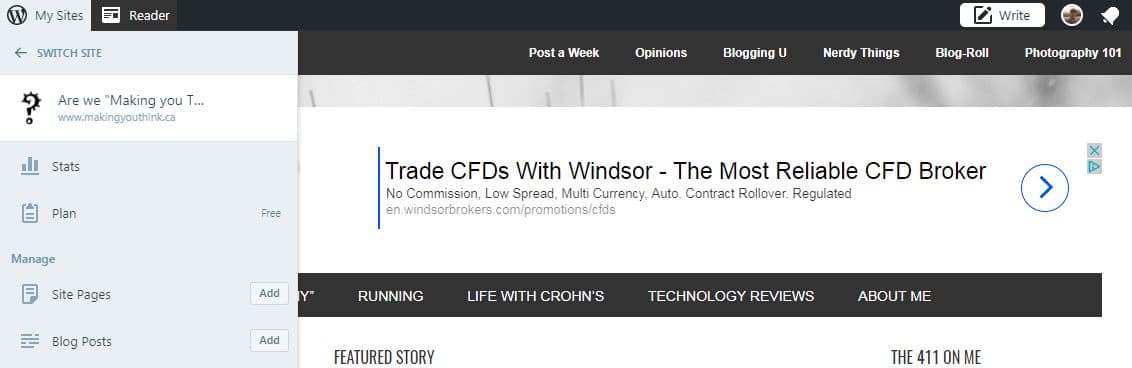
Image on how to enable WordPress Reader on Self Hosted WordPress Website.
WordPress.com Tool Bar active on self hosted site.

Although I did noticed one recent read from Reader, it does’t appear the populate Reader with self hosted posts when I do a search based on my tags.  However, maybe this is the first step?

What am I giving up if I move to WordPress.com?

What am I giving up if I migrate my self hosted WordPress Blog of website to WordPress.com?  Well, for me the biggest losses are as follows:

  1. Loss of my custom WordPress Theme – Without touching on the economics of migrating my site, as I will talk about that later, for starters my theme is not available to the WordPress.com platform.  I will have to start from scratch, a new design.  Ugg – although I am offered the option of 318 themes made up of free and premium (with a cost), we get use to our look and feel.  And to be honest, I only changed mine just before I started the Blogging 101 course a few months ago.  Truthfully, this is a hard change to swallow.
  2.  Costs – For some that have a website hosting package dedicated to their blog, this may not be an issue as WordPress.COM advanced hosting package (their basic blogging package is free) which includes our custom domain.  You are simply moving from paying company A to company B.  However, for me, I share my hosting package with a few other websites that I own so the move to WordPress.COM will cost me an additional $100 a year for WordPress’ VIP account.
  3. Loss of Control –  As a self-hosted WordPress Blogger I have access to every intimate detail of my site, from the SQL Database, the php and css code.  The ability to easily add any type of content, including a link to my Amazon Store.  To can not be positive how much control will I loose, do I have the ability to load any Plugin from the WordPress archives or on a selection, will I lose my Flickr connection?
  4. Plugins or no plugins – As I noted earlier, self-hosted WordPress sites have their pick of close to 34,000 plugins to choose from.  To be fair, those that are regularly updated and downloaded by WordPress users are a fraction of those.  However, the number is still staggering.  My current site uses 15 plugins, of them a handful are among the top (Akismet, JetPack), however, others such as my Flicker Photostream, to repopulate my Flickr Photo’s or gallery on my WordPress site is not as popular and more than likely not included.   Again, what will I have to give up?  WordPress.com advertises they offer their customers over 200 plugins, and WordPress VIP subscribers are offered an additional 120 plugins, however, their support for Flickr integration is VERY limited. However, if there is a plugin that I  feel is a must-have and would benefit users on WordPress.com, I can make a suggestion through the ideas forum!  However, that feels more like a lottery than a reality.

Will I move my site to WordPress.com After all?

So where do I start?  I suppose I will continue to search the template site so see what catches my eye.  I wish there was a trial of Premium templates as it is hard to tell how well your content will fit the mold, however one challenge at a time.  For now, I have migrated some of my post, categories, and pages over to WordPress.com under the domain dissectionofme.wordpress.com (makingyouthink was taken, back in 2011 and not a single word posted to it, just a little frustrating) –  to be able to play around with a theme or two.  As I begin to explore each on of my four points above I will be sure to check back in and write another article or add to this stream.

Step 1: Find a New Theme

As I noted, WordPress.com does offer a few hundred themes to placate even the pickiest of designers.  One area of comfort, if a Premium theme doesn’t work out WordPress does offer a full refund up to 30 days from your purchase. To cancel your purchase and obtain a refund, please use the Cancel button on the My Upgrades page. You can always switch to any other Premium theme or one of free themes. The unfortunate part, is that the theme that has caught my eye is available free (as part of a lifetime subscription) to my self hosted account (back to #2).  Now much are a few readers worth to me?


As a followup one year later…

I end up going WordPress.com a try and went as far as to purchase a new theme, pay one year of hosting, and custom URL.

Despite the convenience of a managed hosting environment the lack of control over what I could add to my Blog, from widgets to HTML edits, I ended up migrating my site back to the self-hosted environment.

Don’t get me wrong – WordPress.com is a great service, especially for BLOGGERS that do not want to get their hands dirty with managing databases or potential technical issues.  However, for me, the additional hosting costs (above my other sites), and loss of control were two strong strikes against the service.

Within six months of my one-year subscription, I had migrated my site back to my self-hosted domain. Subsequently, I have moved MakingYouThink to a new host.

We highly recommend our current WordPress hosting provider, Montreal, QC based Web Hosting Canada. If you are interested in starting your own blog or WordPress site, check out our quick WordPress tutorial here.

Recommended WordPress Hosting: Web Hosting Canada, fast, Canadaian and doesn't break the bank

A Dissection of Me – Exploring what makes me, “me”

Image: Picture of Me (Mark Hanlon)
Picture of Me (Mark Hanlon)

Who are we? What makes us, us? How would you describe yourself to a stranger? How honest would you be with the response? Today’s challenge, lets explore a dissection of Mark Hanlon and try to answer the question of “what makes me, “me”?”

Overcoming Writers Block

I was speaking to a friend the other night and noted that I have had a bit of a writing block when it came to my blog — what inspires us can vary, what we are passionate about changes over time, and then again there is always the age old question of “Who do we write for?” I have never wanted the site to be a chore, never writing because I felt I was obligated to.  I suppose that is one reason why I am fortunate not to have a regular following, then again I can attribute a portion of that downfall to the lack of exposure in WordPress Reader for those of use with self hosted sites.

When I was taking the Blogging 101 I noticed that dailypost.wordpress.com had a Post a Day section, and something that is a little more my speed, a Post a Week from which to seek some writing inspiration so off I went.

Digging for Roots – In this week’s Weekly Writing Challenge, tell us about what makes you, you.

Answering the Question: What makes me, me?

As I sit back and try to break topic down in my head,  it quickly occurs to me how muttled the discussion could be.  How can you stand back and look at ourselves objectively as we begin to peel back each layer of our being?  Where to start, what would interest our audience?  Are you curious about what happened in our life that shaped and mold us into the people we are, did our parents divorce at an early age, was there a defining moment, were we were the over weight kid that was always picked up, the jock whose dreams of a career in special sports was crushed at an early age do to an injury and never recovered?    On the flip side, we could look at the here and now – if we stood back and asked ourself, “Who is Mark, how would someone describe me”, how would we describe ourselves is equally as relevant to answering the questions?

I was curious about the later, and to be honest, looking deep into my soul was something that I needed to build a little confidence to tackle the question of who I really am in such an intimate environment as this.   What was equally as interesting, and at the same time scary, was wondering who others viewed me.  So off I went in search of some answers and here is one one friend said:

You are  neutral with others.  You don’t share anything with others and reluctancy say anything about myself.  But when they get to know you, tou are fun and whitty, smart, with a stupid morality and can be a right pain in the ass sometimes.  Generous and really really patient.

“SWEET, CHARMING, CUTE, WITTY, ADORABLE, AND MIND-BLOWING SMILE” — NOT QUITE WHAT I WAS LOOKING FOR, BUT A VERY SWEET REPLY.

or

For me, I am just me. I am that guy that has never been confident enough for his own good, a wallflower, that hears all, sees all.  I probably spend far to much time evaluating every option and outcome then just saying screw it and jumping in with two feet and treading my own path.  My friends have always been few and far between, however, for those I have let in, I could not imagine them as anything less then lifelong partners in crime, the type of people that if either of us needed anything at 3 a.m. we would open our doors, turn off the coffee maker or open a bottle of wine and tackle life together. In many ways I am very private – keeping everything from having a child, to challenging relationships to myself.  Why is that you ask?   A very good question — and could not really answer that mystery.  I suppose in many ways I do not want to be a burden to my fiends, yet again, isn’t that not what friends are for?  As I said before I look at every side of every situation, which also helps me relate to experiences others are going through — or atleast try to relate, and rarely judgemental of peoples choices as I know there are many sides to every story.  At the same time, I put everything, and I mean everything before my own happiness – selfless comes to mind, however, stupid morality probably fits equally as well.

Dissecting myself has become an intriguing idea, one that I think I may explore at a deeper level. At times, I think there is a benefit of having an anonymous blog, being able to write without concern what what friends or family would think or how they would react. However, a few words at a time, peeling away those layers of my opinion, may help me understand myself a little more.  Looking back on my life, it is interesting the path we have taken to get were we are, looking at ourselves now, we can ask, “Why are we content being a wallflower”, and where do we want to be in the future.   I am no longer that person that has very little to say, that had trouble holding up his end of a conversation, I am certainly not the person I was ten years ago.  People change, we grow, we evolve, some times out of choice and hard work, but most of the time just moulded by time and experiences.  No matter the motivation, one thing is for certain is that change will continue — after all, even the grump old man around the corner, could have been some young hip gangsta in his time.

Photo Challenge: What does Bliss Mean to Me?

Today’s assignment in my Photo 101: A picture a day project is BLISS, what does the word mean to me?

IMAGE: Sparks from a bon-fire (makingyouthink.ca)
ISO 1600, f 2.2, 1/15 sec, 50 mm

This was a tough one to consider – what captures my moment of bliss.  Is it that first sip of a Starbucks Latte, the smell of the fall air, or is it simply a moment in time that transcends all else.  For me, it is the later, and more that moment.  How we build our experiences to transform to that moment?  I had a chance to play around with shutter speed, how best do I capture the movement of the flame and the sparks.

The bliss in this photo is not only the moment my shutter closed, but more importantly the worlds around the fire, the darkness of night, the sounds of the fire.

Photo Challenge: How Does Water Impact our Lives?

It is amazing what captures a Childs imagination.
It is amazing what captures a child’s imagination.

Today’s Photo Challenge from Photo 101 : A picture a Day is water.

How does water impact our lives, and how can your sense impact the story you want to tell.  Trying to capture this little guy standing still is always a challenge, however, I was able to grab a few clicks before he lost interest and moved down the beach.  How did a landscape picture work compared to a traditional portrait orientation?  Unfortunately I didn’t have a chance to make it to the lake before the sun started to set (who wants another sunset photo, however, captured these not too long ago that I thought were fitting.

How do we capture the entire scene?

What is the most important element in the picture; the foreground driftwood, the child playing, the forested vista?  The character of the landscape is lost in the landscape orientation, and no true focal point.  A portrait orientation provides depth and character.

What are your thoughts?  How would you have composed the photo.

Playing in the Water
How to capture the entire scene, what is most important?

Photo Challenge: Focus on Street

Day two of Photography 101.  Today’s assignment, “focus on a street. It can be a quiet road in a small town, an alley near your apartment, or a busy street where pedestrians weave between cars and motorbikes, like this scene from Hanoi, Vietnam.”

Counting down the days until winter.

It is incredible what a few days can do to a place — if you drove down this road only a few days ago, it would have been as if you were driving through an archway of fall colours. A street can be interesting — if I looked to the left, the glamour of a new freeway cutting through the landscape, to the right, foliage as far as the eye can see.

Off the Beaten Path

An aside note, trying to think of an area to photography this morning it occurred to me, a drizzling day, overcast, certainly not the greatest of light. At the same time fall, and again, not the greatest amount of light — where dusk approaches by later afternoon, and the moon is shining it all of its radiance by dinner time. Yet, that is simply another element in our photography.

We can never plan the weather, or if we can get our subject to smile, or in my case, as I seem to always be photographing birds, to stay still. However, we make the most of the environment we are in and jump in with both feet to capture the best photo we can see through our lens.

Until tomorrow!

Photo Challenge: What does Home Mean to Me …

Home is Where the Heart Is.  Taking a look through The Commons, it looks like an incredible group of Bloggers and Photographers all set to jump into Photography 101. I am sincerely looking forward to learning what the 101 class has to offer and even more, what I can learn and be inspired by, from the work of everyone in the class.

Appreciation
Appreciation

Our first assignment, What does Home Mean to Me, had me thinking.  Does home mean the lake that is a few hundred steps from the house and the brilliant sunsets we enjoy both near and far each night, does home mean the roof over my head or the tree fort in the yard?  However, what I quickly narrowed in on is that at a blink of an eye, any of those can change.  The sunset will always be there, but what happens if we move and not a 30-second walk to the dock, what happens if a storm knocks over a tree that the fort surrounds or an accident destroys the house.  In truth, you could say each and every one of these replies is superficial at best.

Brothers
Brothers

To me, home, is anywhere I can appreciate my two amazing boys.  As a unit, we will survive any hiccups in life, as a family, we will make anywhere home.  Is this a cough up of an answer, possibly, however, as I return to the keyboard after checking in on them sleeping away the night, I truthfully would not want to include anything else.

Blogging 101: Add a New Page or Post

WordPress seems to take on two hats, as an incredible, blogging and communicating platform that is used across the globe to share our thoughts, dreams, and confessions.  On the other side of the divide, WordPress functions as an incredible CMS (Content Management System), and operates much like any other website, providing a strong, back end image, text, and page management features.  In most cases these hats are interchangeable. Enjoy this blogging 101 post on creating your first page, post and blog content.

Pages vs Posts

Jumping onto the support site at WordPress.com, here is the official difference between pages and posts (you can read more here):

Posts

Posts are entries listed in reverse chronological order on the blog home page or on the posts page if you have set one in Settings  Reading. If you have created any sticky posts, those will appear before the other posts. Posts can be found in the Archives, Categories, Recent Posts, and other widgets. Posts are also displayed in the RSS feed of the blog. You can control how many posts are displayed at a time in the Reading Settings. The URL for a post includes the date the post was published like this: /2014/blogroll-links/

Pages

Pages are static and are not listed by date, much like a traditional HTML website. Pages do not use tags or categories. An About page is the classic example of a page.

Pages can be displayed in the sidebar using the Pages widget, and some themes display pages in tabs at the top of the blog.  The URL for a page looks like this: /recent-book-reads.  Pages are great for static, single purpose pages, contact or about me information, list of items, such as my recently read books, a link or embedded Twitch or YouTube channels, or photo galleries

Here is a list of my Pages

Here is a list of the pages I have added to my MakingYouThink blog:

What do you have on your lists of Pages?

How we design our WordPress site is of personal preference, pages, posts, links to alternate mediums such as YouTube, keep our content new, interesting and fresh.  Each section of our sites are there to serve a purpose.  When making your next post, ask yourself, would this be better served as a page?

Blogging 101: Exploring Alternative Beliefs in Your Writing – Two plus two equals four?

Life seems pretty straight forward, 2 + 2 = 4, right?   What seems so simple, so rudimentary, kindergarten basic, is actually a very complex question.  But wait, 1 + 1 = 2, 2 + 2 = 4, again, simple, right? Today’s Blogging 101 exercise is a writing prose. Write about a topic from two different perspectives, call it Ying Vs Yang. As writers, it is important to recognize that there may be more than one interpretation of any situation. Ensure that as you are writing, you consider how you will address these alternative sets of beliefs.

In every situation there may be more than one interpretation, or right answer. Ensure that your blogging considers all possibilities. Photo by James Wheeler from Pexels.

We spend our life questioning everything, why is the sky blue, just listen to a three year old. Yet, on the flip side, we fail to question, many aspects in our lives that just seen so “normal”. Ok, normal may not be the best label, but, you know what I mean.  It is interesting when we stand back and begin to not only look at life but through life.  What is the backside story for why the neighbor broke up or your colleague was promoted and not you.  It is truly insetting what you observe when you take a minute to look around us.

Although 1 + 1 is 2; and 2 + 2 = 4. 0.25 X 16 equates to the same.  There are many interpretations of the truth and the realities we lie, and most of the time we are too scared, preoccupied, distracted to see the truth.  Many times we can’t see what we are not willing to  to accept.

So lets pause, take a moment and observe.   What did you see?

Blogging 101: Create a Blogroll – Blog-Rolling around with Others

Today’s Blogging 101 assignment is to create a Blogroll powered by the Links tab to help manage the sites you enjoy to read and visit frequently and the power reciprocal links to your blog.  After all, as I have said a few times since our course started up, it is amazing the similarities there are between us.  

Creating a Blogroll is the perfect way to highlight the Blogs you follow and the websites that you visit frequently.

A blogroll is a list of links to blogs that the blogger likes. A blogroll is usually included in the blog’s sidebar. Some bloggers divide their blogrolls into categories. For example, a blogger who writes about cars could divide his blogroll up into categories for links to other blogs he writes, other blogs about cars and other blogs he likes about unrelated topics. The blogroll can be set up based on each blogger’s personal preferences, and it can be updated at any time.

The question, where, oh where to fit a Blogroll?  Bottom is taken; sidebar — well as long as my Blogging 101 content survives — taken so the typical Blogroll Link widget will not help this time.  Hummm …. is there such a thing as a Links page built into my exiting Theme?

My Solution

After a little searching around the Plugins Library I stumbled across a plugin called of all things Link Library. With almost 500,000 installs, it seemed like a god candidate to help bring my link idea to fruition.

Link Library Admin Screen | A great WordPress Link management plugin. Check out how we are managing our partnership links on MakingYouThink.

Link Library WordPress Plugin

The purpose of this plugin is to add the ability to output a list of link categories and a complete list of links with notes and descriptions.

Besides having an overwhelming number of features, including allowing people to submit links to be included, out of the box it did a great job at organizing and publishing the links I have under my Links tab.

My links library or Blog Roll can be found here.  Now to start playing around with the more advanced features.