The battle is on, do I jump in with both feet and grab a new Android tablet like a Samsung Galaxy or a Blackberry Playbook to read my e-books? Or do I simplify life and fall to the basics of an e-book reader like Kindle or Kobo?
To set the context, I love my e-books. Even long before Kindle and Kobo where possible, I bought PDF versions of books. The fact that you can use a search functionality to find content is a god send.
Within our house we have the gambit of technology, laptops, desktops, iPod touch (retired iPhone 3Gs), iPhone 4s, and iPad 1 to name a few. With Kindle and Kindle I can access my e-books via my PC reader, my MacBook reader, via the web with Kindle, on my wife’s iPad (preferred choice) and my iPhone (small screen but manageable). So why another e-reader you ask?? Well, I am usually stuck reading from my iPhone –
So here is my dilemma. Four technology choices, no perfect solution:
Unlike devices with LCD screens, e-readers such as Kindle or Kobo use the latest generation of Electronic Ink (“E Ink”) technology – designed specifically to deliver clearer, sharper text that makes reading for extended periods of time more comfortable, and work great in daylight (do not have to worry about glare). Add 1 to 2 months of battery life and sized to mimic a book, how can you go wrong?
2) iPad ($519 to $719)
Our iPad has not steered us wrong, a great App community, and more importantly being able to save some money on having to buy the same applications across multiple platforms. For me, the biggest drawback is the size of the screen. I am looking for a device that will fit between my laptop and me typing/reading away on my iPhone (where I am actually writing this article) so a 6 to 7 inch screen would be perfect. A 10″ tablet or iPad is just not practical (especially when you are looking for a second device). The downfall is the price; nothing Apple is inexpensive; but would have even swallowed the price I’d the form or size worked well.
3) Android Tablet ($199+)
Google Android OS has been around fora few years and has grown in popularity as the primary operating system (OS) for both mobile phones and tablets. Designed around the open market, you have one if the best sources for fun add-ons and typically at a fraction price of the Apple equivalent. In contrast both IPad and Blackberry applications require the blessing of Rim and Apple. Available in 7 and 10 inch screens, the key distinction between each device (manufacturer) is battery life (typically 6 to 8 hours), built in storage (for apps, music, movies), convenience of connectivity (HDMI out, hcSD external storage), and quality of the built in camera.
RIM (Research In Motion) jumped into the Tablet market about a year ago. Compared to Apple, and as a former Blackberry owner, their biggest downfall has always been their availability of applications. However, the PlayBook has recently become a new contender in the Tablet market with their recent OS release 2.0 (February 21, 2012) which can now run Android applications. On the hardware side, the Blackberry Playbook 7-Inch Tablet is rock solid, and includes HDMI and mini USB, however the PlayBook but could quickly be become a paperweight if the application world is not behind it. After-all, how many versions of the same program can we expect developers to make?? Hopefully, Once Blackberry opens up the MarketPlace to Android applications life will get better for PlayBook owners. RIM / Amazon – all I ask for is my Kindle reader!!!
So as not to start a PlayBook war, the current workaround to instal Android applications (apps) on your PlayBook is through Developer Sideloading – but not considered a formal or recommended practice for installing applications.
So what do you choose?
An e-reader that is great a just that – being a book – or a multi-function device such as a tablet? My next post will dive deeper into the discussion and where my mind is headed. But I would love to hear your thoughts!
I recently had a transaction on my Canadian Credit card from a US vendor. The original charge was $55.83 USD with a Canadian exchange rate of 1.0164 or $56.74 CDN. Read on about my realization on how banking policies ensure that banks swindle their customers around every turn. Exploring exchange rates. Buying vs selling currency.
I decided to pay for the charge with my USD Savings Account:
To exchange my USD savings to $56.74 CDN cost me: $59.26 USD
So overall; it cost me $3.43 dollars more based on Banking Policies and practices to pay me original charge of $55 USD with the same currency.
Now, $3.43 is not much, I admit, but now add another zero or two to the amount, $550 would have cost me $34 more, $5500, over $340 more just for a matter of computers automatically transferring money between accounts.
How can you use Microsoft Access Make Table Query and ensure you do not round decimial places?
How to A common issue with Microsoft Access is that when using the Make Table Query command, the new table is will create number fields as an integer and truncates your decimal places resulting in the number zero (0) to be written to the newly created Table / column. For example, if you had a field in your query that calculates a percentage, i.e. 0.78 or 78%, the integer removes all digits to the right of the decimal and stores simply the number zero (0) in your table. Here is a quick, and very simple, solution based on built-in data conversion functions (don’t worry it took me a bit of research across the internet to find it myself, and more simple than a few dozen lines of VB code that are commonly recommended)
Type Conversion Functions
Microsoft has several Type Conversion Functions built-in that can be utilized to manipulate the filed type on the fly. The function name determines the return type as shown in the following:
Function
Return Type
Range for expression argument
CBool
Boolean
Any valid string or numeric expression.
CByte
Byte
0 to 255.
CCur
Currency
-922,337,203,685,477.5808 to 922,337,203,685,477.5807.
CDate
Date
Any valid date expression.
CDbl
Double
-1.79769313486231E308 to -4.94065645841247E-324 for negative values; 4.94065645841247E-324 to 1.79769313486232E308 for positive values.
CDec
Decimal
+/-79,228,162,514,264,337,593,543,950,335 for zero-scaled numbers, that is, numbers with no decimal places. For numbers with 28 decimal places, the range is +/-7.9228162514264337593543950335. The smallest possible non-zero number is 0.0000000000000000000000000001.
CInt
Integer
-32,768 to 32,767; fractions are rounded.
CLng
Long
-2,147,483,648 to 2,147,483,647; fractions are rounded.
CSng
Single
-3.402823E38 to -1.401298E-45 for negative values; 1.401298E-45 to 3.402823E38 for positive values.
CStr
String
Returns for CStr depend on the expression argument.
CVar
Variant
Same range as Double for numerics. Same range as String for non-numerics.
The Solution
CDbl function to convert an expression to a Double number. In my Make Table Query, the Function can be applied as an “expression” directly in the query that will force the Make Table to use a Double Number.
Expression Name: CDbl(Table Name.Column) for example: Total_Percent: CDbl(Calc_Table.Perct)
I know many tech-savvy Access users would argue, why not just run from the query, what is the benefit of making a table? Well for some, including myself, there are a few programs out there that can read the MS Access data Tables, but not necessarily the queries, so we have no choice. No matter what your reasoning is for having to convert decimals in a query to a Table, I hope this saves you a little time.
We received an interesting telephone call on a private line earlier today from a company called “ONLINE PC CARE” or something similar regarding recent errors on my computer that had been reported to Microsoft. Warning, this is a scam and you should not give them access to your computer or go to any websites.
The representative, who had an Indian accent, inquired if I had recently had popups on my Windows computer noting that an error had occurred and if I wanted to submit this information to Microsoft for Review. The representative went further to say they as an “official” partner of Microsoft that they had access to this information and were calling to assist in rectifying the errors. I further asked “If their company represented Microsoft”, the answer was “No”, however an “official partner”. Upon inquiring to the cost, they informed me that if the “software” was under warranty there would not be any costs and would otherwise inform me of the expense once the diagnosis was completed.
I politely informed the gentleman that I was not completely comfortable with allowing a 3rd party access to my PC or conduct a scan. He then informed me that, any unauthorized access would be considered “Hacking” and a “Federal Offense”. How would me allowing RDC (Remote Desktop connection), or the 3rd party mal-ware considered “authorization”? Regardless, I was curious and played along….
Q: Do I recall seeing any errors on my screen?
A: Not that I recall? But let’s be honest, it is Windows – of course there are errors. However, in MS’ defence Windows 7 is pretty stable.
Q: Was I aware that malicious software had been installed on my computer and was sending information over the Internet?
A: I was shocked, my computer infected? What can we do?
Q: Am I sitting in front of my computer now?
A: Yes, what would you like me to look at?
Q: Do you see the green “Start” icon in the bottom left?
A: I should have said yes, obviously they were looking for Windows XP based computers. Both Windows Vista and Windows 7 have a rounded Windows icon in the bottom right.
Q: CLICK – they hung up.
A: They could have been disconnected, but unlikely.
The moral of the story – THIS IS A FRAUD and a SCAM. Do not provide anyone calling anonymously about computer issues or repairs, provide a credit card, passwords, or personal information to phone solicitations, and more importantly do not install any software unless you know the source and legitimately.
Microsoft responds to the ongoing concern with the article “Help Protect Your Friends And Family From Phone Scams” with the following infographic. Click on the picture to see the full document.
October 2015
These calls seem to come to every few options — always with a bit of a twist however with the same goal. The newest spin and a smart one to help provide some legitimacy was to read off a number associated with a CLSID which they described as a “Client License Server ID” and have us look at a textual list of indicators by going to to the windows command prompt and typing “ASSOC”. At the bottom of the very overwhelming list of information that flashes on the screen was the “unique identifier and proved he was from Microsoft and that I was “causing big problems” on the Internet.
Similar to the previous EVENT Viewer scams (have you type: eventvwr at CMD (Command) prompt, this CLSID is actually on nearly all computers and is not unique to your computer. In fact, if you right-click on any file you can find the reference to the for the “sendtotarget” for the Send To – > Compressed Zip Folder.
Admittedly, I have been a long time Windows Home Server User but as my hardware comes close to its life cycle and a recent catastrophic data corruption issue that left me without my backup archives, luckily my data remained safe, it is time to start looking for a replacement. Simplicity, ease, expandability, and redundancy are all important when considering any backup solution — Don’t get me wrong, Windows Home Server is great, and despite the criticism from the current user group over the loss of Drive Extender with Windows Home Server 2011 (Vail), I still believe it is an excellent Backup and Data Solution. However, for some time, the “Beyond Raid” technology that powers the Drobo series file share and data storage devices by Data Robotics, Inc has caught my attention and become a key contender as the new home and home office backup and data storage device.
With that said, I still need to get my hands on a Drobo but thought it deserved a few words of encouragement and Kudos for what is a great product. Once I have my Drobo FS up and running I will be sure to write a more detailed blog.
Drobo is best described as an expandable network storage solution that is as simple as plug and play for both your Windows and Mac systems. Sitting here typing on my Windows 7 Ultimate box and the MacBook Pro chugging away beside me, the duel compatibility is a definite plus. Drobo is labelled as a “hard drive that is NEVER FULL AND NEVER FAILS”. We all know that Hard Drives get full, the get old and eventually they fail. Powered by up to 16TB in from four to eight drive bays using any combination of 3.5″ SATA drives the Drobo’s array of connection options from FireWire, USB, eSATA, Ethernet, and iSCSI allow for connectivity options for any users.
One of the best features of Drobo is its Expandability
With Drobo, buy just the storage you need now and change it as your data grows. Mix and match drive brands, capacities, and speeds. Replace your smallest drive with a larger one and immediately use the new capacity in a matter of seconds, not hours! It’s a simple as inserting the new drive into the slot. Expand up to 16 TB on a single volume as larger drive sizes become available. Drobo creates one large storage pool. Dive in and eliminate the need for multiple external storage drives and devices.
Plug-In Peace of Mind, Plug-In Simplicity
Just plug in Drobo and your data protection is all set up — that’s it! Add disks at any time for additional protected capacity. In addition, keep informed about your data. Lights on the front tell you what’s happening—if you can read a traffic light, you’re already a Drobo expert.
Take a look at how the lights on the front work on a four-bay Drobo and they work the same way on all Drobo models.
Small Foot Print, We do not need a server room
So just how big is a Drobo? As a replacement to my Windows Home Server, I have had my eye on the Drobo FS (File Sharing) for about a year. Remote Access to your files, DLNA Compliant, Seamless Integration with Apple Time Machine. The list is endless — and with a footprint that is hard to beat. Weighing in at 8 lbs, the Drobo’s 7 X 10-inch figure will fit on anyone’s crowded desk or neatly in a corner.
Old Hard Drives are not a great backup or achieve solution. Read more to learn why.
External storage enclosures, or adding a second or more hand drive to your desktop computer are a useful and increasingly popular way to expand digital storage; however it can be difficult to manage storage across multiple disks that may be both internal and external. Because each drive is seen and managed as a separate ‘volume’ or drive letter (C:, D:, E:, etc.), as users add drives to their computer or PVR, they are also adding complexity.
When adding a new drive to a system that is already bursting at the seams with data, the user must recreate a file structure on the new drive. However, doing so creates a situation that fragments data across the two disks, forcing users to remember “Which drive holds which files?” This often results in users creating and maintaining duplicate folders such as a new ‘My Music’ or ‘My Pictures’ to store new content after the original disk is full. This additional complexity quickly leads to questions like, “Were mom’s birthday pictures on drive C: or E:?”
Is Spending Time Reorganizing Computer Data Worthwhile?
The other option for users, of course, is to spend several hours reorganizing and migrating their data every time they get a new drive. Even assuming that users are comfortable with finding and transferring their data, the hours it takes to transfer GB of data, and the consequences of forgetting to transfer some key bit of data can be severe. In addition, applications that have default save locations need to be retrained to save to new locations on the new drive. To make matters worse, some software may not allow multiple locations for content. They may expect all content to be in a single specified folder (must always be drive c:), preventing the use of a secondary drive letter. While users can get more storage by adding a drive, it’s difficult to manage data across multiple drives.
How does a new Hard Drive protect you from Catastrophic Failure?
The simple question, how does adding a new hard drive to your computer protect you from a catastrophic loss like a fire, flood, or theft, or mechanical breakdown? We have been diligent, we have organized and copied our data between drives. Even set up a drive set as a RAID system that automatically clones itself to a second drive. Your 50,000 family photos and dozens of hours of video are safe. You get home from work, the door is ajar and the house ransacked.
Where are your family photos now?
Limits by Hardware – you may just not have the room for another hard drive
Another problem is that most consumer devices, such as PVRs have limited, if any, expansion capabilities. Even PVRs that do understand the concept of two or more drives usually provide a single extra USB drive connection which allows you to attach only a single extra drive. After that drive is filled up, there are no more expansion options. This is a stop-gap, rather than a solution.
A recommended solution to backing up your hard drives and computer data
A comprehensive solution would allow users to add storage easily over time, would free them from the restrictions of the number of expansion. In following article I will explore the top 5 solutions for backing up your home or office computer. Continue to read more here.
Why should you back up your computer? In this post, I will discuss the importance of routine backups of your computer or phone.
Imagine a family member (your wife) curled up in your leather chair, wrapped snugly in a blanket, and sipping on their favourite beverage while enjoying an evening in front of a nice cozy fire. How better can life be? Now imagine that same family member reaching into the family hope chest, that serves as the room’s coffee table, and pulling out the cherished family photo albums. Now continue to imagine that family member, tossing each picture into the roaring fire, to be lost forever. As unrealistic as this may sound, the reality of the situation isn’t.
Our lives are becoming increasingly more ‘digital’ – the typical household now consists of one or more computers, digital cameras, digital music for their iPods and mp3 players, and digital video from their DVD quality video recorder, PVR (Personal Video Recorder) or TiVo Box. At last count, my wife and I had over 22,000 digital photos stored on our computers, approximately 60 Gigabytes of data (GB). Although her last trip to the get a few developed, did result in another 450 photographs stacked around our house, there still remains over 19,500 digital photographs that could be lost at a moment’s notice. This number continues to grow by the day.
My Computer is Invincible
This could be you.
Many would argue, “I have had my computer for five years and nothing has gone wrong, why would I need to backup my files”. I will touch more on that later, however what about fire or theft. It is a rare occasion that a burglar would steal your family photo albums, but throwing your precious laptop into their bag of goodies, and in turn 19,500 of your fondest memories; your wedding, a tropical vacation, or the birth of your child; the video of his first steps; will be more devastating than the accident itself, a fire is even less forgiving.
This could be seen as an advertisement for your local photo process centre, but what I am going to discuss in this article, and those to follow is much more entertaining.
Storage needs are growing exponentially
I recently purchased a new computer that came with a 750 gigabyte (GB) hard drive, plenty of room to save pictures, music, digital video, and games, your entire life in a box. Truthfully, I cannot imagine ever using up the entire space, but I am positive there are many home users out there that do. The amount of digital content being created and stored by the average consumer is rapidly increasing. Much like my wife, photographs that use to stay in shoeboxes are now stored on the computer. Home videos, TV show, movies, music; all of it is being stored digitally, and most go onto a hard disk somewhere in the digital home. The size of digital files is growing, too. From the rapid increase in megapixels on digital cameras to the current transition from Standard Definition TV to HDTV, as the quality of the digital media increases, so does the size of the file that stores it.
As an example, it Currently, it takes about 2.3 GB/hr to store Standard Definition TV while HDTV is stored at an average of around 8.6 GB/hr. That means a PVR with a 250GB hard drive can store around 110 hours of standard-definition programming but only around 30 hours of high definition programming (2). With this increase in the amount, diversity and size of data being stored digitally, it is easy to believe that the amount of personal content or home reference data in a “‘well-furnished’ digital home” will grow from about 322 GB per home in 2005 to 1,933 GB by 2010 (1).
Your Digital Household
Now let’s look at the typical family, the 750 GB monster I touched on above is a single computer, with its own “filing cabinet” or hard drive of information. Many households have multiple computers (by computers, this is not limited to simply Windows, but extends to Mac OS, Linux, or any other user operating system), and many consumers bring laptop computers from the office. Each device may be storing its own digital content, and in many cases duplicates across the household. Let’s extend this to a hypothetical household I will refer to as “The Smith’s”. Dad has his powerhouse of a computer, with the same 750GB of storage, and like all dad’s that computer is off-limits to most, Dad players a few games, but loves is music, and playing around with his digital photo’s, and promises to one day edit the hours of video he has stored on the computer to DVD’s. Mom is the proud owner of a more mature, less powerful computer, but still with plenty of storage space with an ageing 250 GB hard drive. Beyond her daily Facebook fix, and online card games, mom loves working with own digital photo archives. Easily, we can see how a household is quickly bridging that 1933 GB threshold, and how increasingly devastating it would when you inevitably lose a file, a folder or the entire contents of a hard drive.
Added to the mix is the growing world of Digital Living Network Alliance (DLNA) certified products (I will talk about DLNA in a future article), which allow you to easily share your pictures, music, videos between any certified devices, easy access, and a common location of your media is becoming increasingly important.
Moving Forward
Over a series of articles, I will continue to discuss the merits of digital storage, discuss the various solutions, from increasing or adding a new hard drive to your home computer to increase the storage space, external storage enclosures, Media Home Servers, and RAID Devices. How best do you copy / backup your data, how do you protect your family photos from being lost?
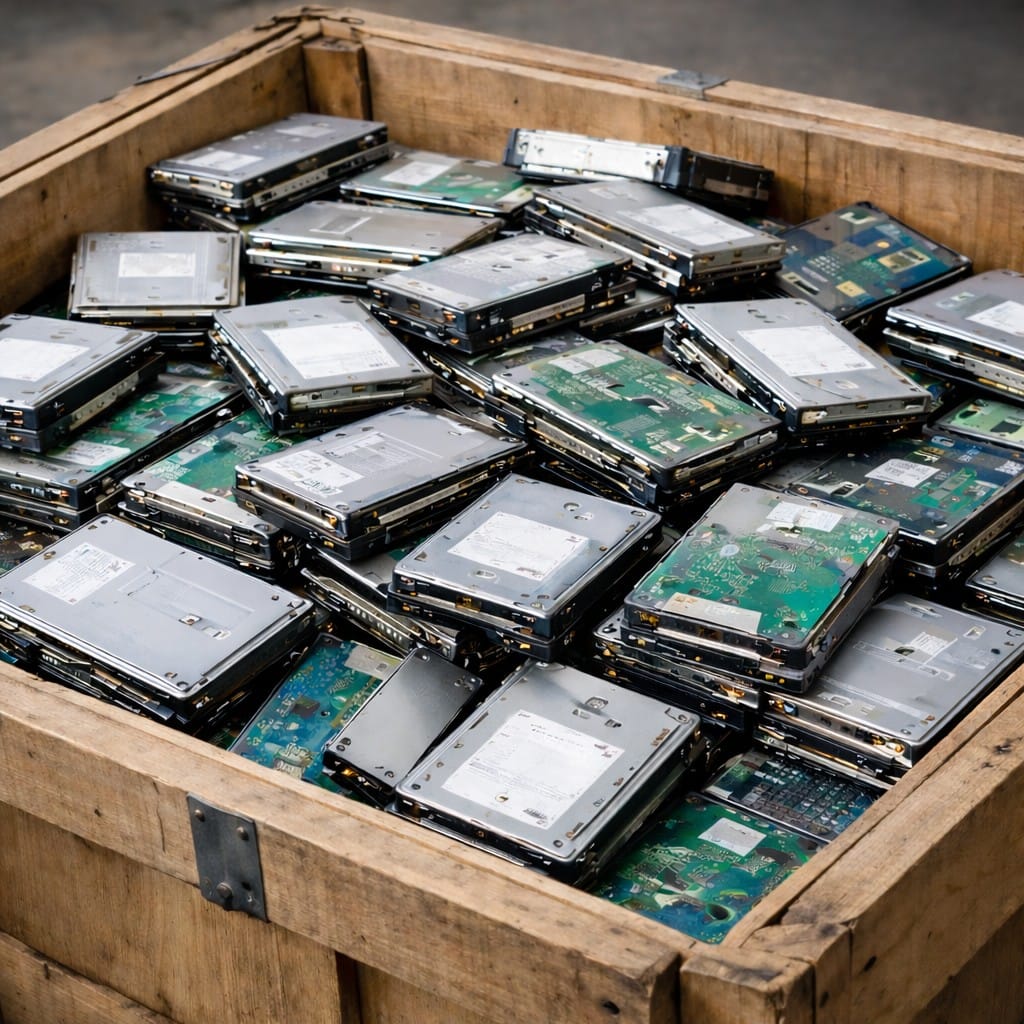
Oh, by the way it would take the following number of disks to backup our approximately 93 standard CD-R’s, or 14 DVD’s to backup our photos. There has to be a better method!
Sources: (1) The Diffusion Group: The DNA of the Digital Home: Trends in Digital Home Storage
A review of why did I buy a Macbook Pro? Making the switch from a Windows 7 (Microsoft) based laptop to a Mac or more specifically a MacBook Pro was not an easy decision.
I have been a Windows guy for a very long time – I honestly wish I could shout out the date that I bought my first Microsoft based computer – a Tandy 1000 EX, but let’s just say we are going back a while. However, I do recall that with the help of my parents, at probably close to the age of 15 or 16 I acquired my first consumer loan and off I went to spend a near fortune to upgrade my ageing Coco2 and move up to the big world of DOS.
A lot has changed over the 20+ years in the world of Windows, but was it time to make a switch. Although this post was written a few years ago, the discussion still holds true with more modern Windows 10. Read more on why I switched from a Windows PC to a Macbook Pro.
When my Sony Laptop (Intel Core 2 Duo – 2 GHz) needed a new battery, it was decision time to spend a hefty $250 at Sony to buy a new battery or upgrade the ageing beast. I know, how can you compare the pricing between a battery and a MacBook (new or used – the Mac is still going to come up top on a price war) – but at the same time, why throw good money after bad? At the same time, the idea of a Mac caught my attention shortly after we upgraded my wife’s Laptop a year and a half ago so it was worth exploring yet again. Mac’s have come a long way the past few years but as a long time Windows user, I had to see how they stacked up before making the switch.
The Dilemma
I love my bells and whistles when it comes to my laptop – higher-end video card with the segregated ram, high definition (HD) screen, blue-ray play and/or burner, 7200 spin Hard Drive (HD) or solid-state, the best CPU I can justify at the time, and Bluetooth. Sure I give up on battery life, but how often am I truly away from an AC outlet for more than a few hours? How can a Mac compete?
Computer Component
Windows Based Laptop
MacBook Pro 15”
Intel i7 Processor
Yes – Extreme Available
Yes – up to 2.8 MHZ
Solid State Hard Drive
Yes
Yes
Blu-ray Player/Recorder
Yes
No
Bluetooth
Yes
Yes
Gamer Quality Video Card
Yes
Yes
Full HD Screen
Yes
No – up to 1680 X 1050
HDMI (Audio / Video)
Yes
Yes – with 3rd Party Adaptor
As of December 2010
Putting all the bells and whistles aside for a moment, the biggest hurdle was the idea of throwing away hundreds if not thousands of dollars in applications that had been purchased for my Windows-based computer, most specifically my Adobe Design Suite, including Photoshop, Illustrator, Flash Pro and Dreamweaver, Microsoft Office, my Antivirus program, DivX Pro, Quicktime Pro, and the list goes on. How could I still utilize these programs on a Mac? Did I have to purchase Mac version of all of these programs, let alone was it financially feasible to replace these programs?
Overcoming the Windows to Mac Hurdles
Hurdle 1: As I mentioned above, the biggest hurdle to overcome before even considering the move from Windows-based laptop to a MacBook Pro was the idea of potentially throwing away hundreds, if not thousands of dollars in computer software and applications. More importantly, the cost of replacing those applications – which was generally not feasible.
As an aside, for those that do use the Adobe Suite of design applications, Adobe will offer a onetime license transfer from Windows to Mac, however unlike Adobe Lightroom 3, although you are allowed two simultaneous installations of your Adobe Suite, you cannot mix platforms, for example a Windows Desktop and a Mac laptop.
Fortunately, the Mac OS X (Snow Leopard) has the ability to Boot Camp. Boot Camp allows you to install and run Windows as a separate partition or operating system on your Mac. This ensures that your programs can operate identical to a Windows-based Laptop. Setup is simple and safe for your Mac files. After you’ve completed the Boot Camp installation, you can boot up your Mac using either Mac OS X or Windows. (That’s why it’s called Boot Camp.) Or if you want to run Windows and Mac applications at the same time — without rebooting — you can install Windows using VMware Fusion or Parallels Desktop 6 software. With Parallels or VMware, you have two options – load your Boot Camp partition inside Mac OS X, or install windows as a separate virtual (virtualization) operating system running within Mac OS X. An important note about Boot Camp, you require an un-used copy of Windows (not installed on any other computer).
Hurdle 2: How can I connect my Mac to my HD television to watch movies, videos, photo slideshows, and PowerPoint slideshows at Media Exhibitions to just list a few. The typical Mac comes with a Swiss Army knife connection for video out called a Mini-DVI. Apple sells several adaptors to allow for converting the mini-DVI connection to DVI, and VGA and 3rd party adaptors to connect to HDMI. If you do a quick Google search you will read a lot of articles that state that although video can be sent to an HDMI, the audio signal is not. However, from about mid-2010 both audio and video are sent through HDMI (confirmed with my MacBook).
Hurdle 3: Blu-ray player. Well, unfortunately, this was just one hurdle that I could not overcome if I choose to go with a Mac. Fortunately in my case, between the Dell Laptop, my primary desktop with a Blu-ray burner, the PS3 and the home theatre Blu-ray Player, I was more than covered. In addition, a few of my Blu-ray movies came with a Digital Download version so I thought I was covered, although admittedly disappointed.
Moving over to Mac OS X
It has probably been about a month now that I have had the MacBook. All in all, the transition has been painless, although I still have a few fumbles with the touchpad. My copy of Windows 7 Professional installed without a hitch on the Boot Camp partition, however, I am having a few issues with activation errors with both my Windows and Adobe products in the Parallels world. For now, I am shying away from Parallels and biting the bullet on the $100 I spent on the software. Even though I had a copy of Microsoft Office from my old Laptop that I could have installed on the Boot Camp partition along with my Adobe suite, partially out of curiosity and partly out of convenience I did decide to give the new Microsoft Office 2011 a try.
Typical medications of a diabetic. Psst – I also have Crohn’s disease so don’t get too scared.
Being diagnosed as a diabetic in my mid-thirties was life-changing. What does this mean to my lifestyle? What can I eat? What the heck is diabetes? In this blog post, I will explore what it mean to be diagnosed as a Type 2 diabetic (T2D). You can look at your diabetes as how well your car runs. Read on to explore.
Your body gets energy by making glucose from the foods we eat. However, to use this glucose, your body needs insulin. Insulin is a hormone that helps your body control the level of glucose (sugar) in your blood. No matter if you are prediabetes, a Type 1 diabetic or Type 2 diabetic, your body has difficulties managing the about of glucose your body produces. When I started to look at diabetes and more importantly to understand the differences between prediabetes, a Type 1 diabetic (T1D) and a Type 2 diabetic (T2D) I quickly realized I had to look at my diagnosis it in its simplest form. With that regard, I decided to look at my diabetes with the analogy that diabetes is much like how well my car runs.
Type 1 Diabetes
In simplest terms, T1D is similar to when your car’s engine will not turn over and has stopped working. It does not matter how much sugar or in this case gasoline you put into that engine — it is not going to run. No one knows exactly what caused the engine of your car to stop working — but there is hope, similar to Fred Flinstone — a little manual labour (feet power) or in our case through insulin injections, your car can still get from point a to be and live a normal life. What’s even scarier – much like a flooded engine, too much sugar in a T1D body can be life-threatening.
The Canadian Diabetes Association further simplifies Type 1 diabetes as simply, a disease in which the pancreas does not produce insulin. If you have type 1 diabetes, glucose builds up in your blood instead of being used for energy. The cause of type 1 diabetes remains unknown. However, it is not preventable, and it is not caused by eating too much sugar. The body’s defence system may attack insulin-making cells by mistake, but we don’t know why. People are usually diagnosed with type 1 diabetes before the age of 30, most often during childhood or their teens.
Type 2 Diabetes
Building upon our car analogy, Type 2 Diabetes is where your car is no longer running on all 8 cylinders. Your car still runs, heck you can get from point A to point B without too much trouble. With the exception of burning a little oil and some TLC, your car could keep on running for years to come. However, eventually, some of the engines will get to the point that they no longer operate as well as they should. and a little assistance is needed. In most cases, medication supplemented with a good diet and exercise will keep your car running even longer. However, in the most severe situations even Type 2 diabetes may need the help of insulin injections.
Type 2 diabetes is a disease in which your pancreas does not produce enough insulin, or your body does not properly use the insulin it makes. If you have type 2 diabetes, glucose builds up in your blood instead of being used for energy.
Prediabetes or Delayed Fasting Glucose
Similar to Type 2 Diabetes, prediabetes is where your car is just starting to run a little rough. Your car still runs, heck you can get from point A to point B without too much trouble. The exception of burning a little oil, and some TLC, your car could keep on running for years to come. However, eventually, some of the engines will get to the point that they no longer operate as well as they should and a little assistance is needed – you have now progressed from Prediabetic to Type 2 Diabetes.
Disclaimer: This is simply my laypersons perspective on diabetes. If you have questions or concerns do not hesitate to see your healthcare professional
Here is a review of the typical drugs to treat Crohn’s disease. There are several categories of drugs that are used to control / reduce the inflammation caused by your Crohn’s. Here is a brief overview of the common drugs to treat Crohn’s Disease. I am currently prescribed Adalimumab (Humira) and Methotrexate (Rheumatrex) to treat my Crohn’s disease. Read more about my battle with Chronic Illness.
As I am neither a Pharmacist nor a Medical Doctor this is strictly my layperson’s review of the drug treatment options for Crohn’s. In all case, consult your medical professional for information.
Anti-inflammatory drugs Anti-inflammatory drugs are often the first step in the treatment of inflammatory bowel disease. They include:
Sulfasalazine (Azulfidine). Although this drug isn’t always effective for treating Crohn’s disease, it may be of some help for treating disease involving the colon. It has a number of side effects, including nausea, vomiting, heartburn and headache. Don’t take this medication if you’re allergic to sulfa medications.
Mesalamine (Asacol, Rowasa). This medication tends to have fewer side effects than sulfasalazine has but may cause nausea, vomiting, heartburn, diarrhoea and headache. You take it in tablet form or use it rectally in the form of an enema or suppository, depending on which part of your colon is affected. This medication is generally ineffective for disease involving the small intestine.
Corticosteroids. Corticosteroids can help reduce inflammation anywhere in your body, but they have numerous side effects, including a puffy face, excessive facial hair, night sweats, insomnia and hyperactivity. More serious side effects include high blood pressure, type 2 diabetes, osteoporosis, bone fractures, cataracts and increased susceptibility to infections. Long-term use of corticosteroids in children can lead to stunted growth. Corticosteroids aren’t for long-term use. But, they can be used for short-term (three to four months) symptom improvement and to induce remission. Corticosteroids also may be used with an immune system suppressor — the corticosteroids can induce remission, while the immune system suppressors can help maintain remission.
Immune system suppressors These drugs also reduce inflammation, but they target your immune system rather than directly treating inflammation. By suppressing the immune response, inflammation is also reduced. Immunosuppressant drugs include:
Azathioprine (Imuran) and mercaptopurine (Purinethol). These are the most widely used immunosuppressants for the treatment of inflammatory bowel disease. Although it can take two to four months for these medications to begin to work, they help reduce signs and symptoms of IBD in general and can heal fistulas from Crohn’s disease in particular. If you’re taking either of these medications, you’ll need to follow up closely with your doctor and have your blood checked regularly to look for side effects.
Infliximab (Remicade). This drug is for adults and children with moderate to severe Crohn’s disease who don’t respond to or can’t tolerate other treatments. It works by neutralizing a protein produced by your immune system known as tumour necrosis factor (TNF). Infliximab finds TNF in your bloodstream and removes it before it causes inflammation in your intestinal tract. Some people with heart failure, people with multiple sclerosis, and those with cancer or a history of cancer can’t take infliximab or the other members of this class (adalimumab and certolizumab pegol). Talk to your doctor about the potential risks of taking infliximab. Tuberculosis and other serious infections have been associated with the use of these drugs. If you have an active infection, don’t take these medications. You should have a skin test for tuberculosis before taking infliximab and a chest X-ray if you lived or travelled extensively in areas where tuberculosis has been found. In addition, the Food and Drug Administration has issued a warning that children and adolescents taking infliximab and other TNF inhibitors have an increased risk of cancer.
Adalimumab (Humira). Adalimumab works similarly to infliximab by blocking TNF for people with moderate to severe Crohn’s disease. It’s prescribed for people who haven’t been helped by infliximab or other treatments. Adalimumab is given as an injection under the skin every other week, which you may be able to administer yourself. Adalimumab may reduce the signs and symptoms of Crohn’s disease and may cause remission. However, adalimumab, like infliximab, carries a small risk of infections, including tuberculosis and serious fungal infections. Your doctor will administer a skin test for tuberculosis before you begin adalimumab treatment. The most common side effects of adalimumab are skin irritation and pain at the injection site, nausea, runny nose and upper respiratory infection.
Certolizumab pegol (Cimzia). Approved by the Food and Drug Administration (FDA) for the treatment of Crohn’s disease, certolizumab pegol works by inhibiting TNF. Certolizumab pegol is prescribed for people with moderate to severe Crohn’s who haven’t been helped by other treatments. You initially receive certolizumab pegol as one injection every two weeks. After a few injections, if your doctor determines it’s working for you, you receive one injection a month. Common side effects include headache, upper respiratory infections, abdominal pain, nausea and reactions at the injection site. Like other medications that inhibit TNF, because this drug affects your immune system, you’re also at risk of becoming seriously ill with certain infections, such as tuberculosis.
Methotrexate (Rheumatrex). This drug, which is used to treat cancer, psoriasis and rheumatoid arthritis, is sometimes used for people with Crohn’s disease who don’t respond well to other medications. It starts working in about eight weeks or more. Short-term side effects include nausea, fatigue and diarrhoea, and rarely, it can cause potentially life-threatening pneumonia. Long-term use can lead to scarring of the liver and sometimes to cancer. Avoid becoming pregnant while taking methotrexate. If you’re taking this medication, follow up closely with your doctor and have your blood checked regularly to look for side effects.
Cyclosporine (Gengraf, Neoral, Sandimmune). This potent drug often used to help heal Crohn’s-related fistulas, is normally reserved for people who don’t respond well to other medications. Although effective, cyclosporine has the potential for serious side effects, such as kidney and liver damage, high blood pressure, seizures, fatal infections and an increased risk of lymphoma.
Natalizumab (Tysabri). This drug works by inhibiting certain immune cell molecules — integrins — from binding to other cells in your intestinal lining. Blocking these molecules is thought to reduce chronic inflammation that occurs when they bind to your intestinal cells. Natalizumab is approved for people with moderate to severe Crohn’s disease with evidence of inflammation and who aren’t responding well to other conventional Crohn’s disease therapies. Because the drug is associated with a rare, but serious, risk of multifocal leukoencephalopathy — a brain infection that usually leads to death or severe disability — you must be enrolled in a special restricted distribution program to use it. This program is called the Crohn’s Disease-Tysabri Outreach Unified Commitment to Health (CD-TOUCH) Prescribing Program.
Antibiotics Antibiotics can heal fistulas and abscesses in people with Crohn’s disease. Researchers also believe antibiotics help reduce harmful intestinal bacteria and suppress the intestine’s immune system, which can trigger symptoms. Frequently prescribed antibiotics include:
Metronidazole (Flagyl). Once the most commonly used antibiotic for Crohn’s disease, metronidazole can sometimes cause serious side effects, including numbness and tingling in your hands and feet and, occasionally, muscle pain or weakness. If these effects occur, stop the medication and call your doctor. Other side effects include nausea, a metallic taste in your mouth, headache and loss of appetite. You should avoid alcohol while taking this medication.
Ciprofloxacin (Cipro). This drug, which improves symptoms in some people with Crohn’s disease, is now generally preferred to metronidazole. Ciprofloxacin may cause nausea, vomiting, headache and, rarely, tendon problems.
Other medications In addition to controlling inflammation, some medications may help relieve your signs and symptoms. Depending on the severity of your Crohn’s disease, your doctor may recommend one or more of the following:
Anti-diarrheals. A fibre supplement, such as psyllium powder (Metamucil) or methylcellulose (Citrucel), can help relieve mild to moderate diarrhoea by adding bulk to your stool. For more severe diarrhoea, loperamide (Imodium) may be effective. Use anti-diarrheal with caution and only after consulting your doctor, because they increase the risk of toxic megacolon, a life-threatening inflammation of your colon.
Laxatives. In some cases, swelling may cause your intestines to narrow, leading to constipation. Talk to your doctor before taking any laxatives, because even those sold over-the-counter may be too harsh for your system.
Pain relievers. For mild pain, your doctor may recommend acetaminophen (Tylenol, others). Avoid nonsteroidal anti-inflammatory drugs (NSAIDs), such as aspirin, ibuprofen (Advil, Motrin, others) or naproxen (Aleve). These are likely to make your symptoms worse.
Iron supplements. If you have chronic intestinal bleeding, you may develop iron deficiency anaemia. Taking iron supplements may help restore your iron levels to normal and reduce this type of anaemia once your bleeding has stopped or diminished.
Nutrition. Your doctor may recommend a special diet given via a feeding tube (enteral nutrition) or nutrients injected into a vein (parenteral nutrition) to treat your Crohn’s disease. This can improve your overall nutrition and allow the bowel to rest. Bowel rest can reduce inflammation in the short term. However, once regular feeding is restarted, your signs and symptoms may return. Your doctor may use nutrition therapy short term and combine it with other medications, such as immune system suppressors. Enteral and parenteral nutrition are typically used to get people healthier for surgery or when other medications fail to control symptoms.
Vitamin B-12 shots. Vitamin B-12 helps prevent anaemia, promotes normal growth and development, and is essential for proper nerve function. It’s absorbed in the terminal ileum, a part of the small intestine often affected by Crohn’s disease. If inflammation of your terminal ileum is interfering with your ability to absorb this vitamin, you may need monthly B-12 shots for life. You’ll also need lifelong B-12 injections if your terminal ileum has been removed during surgery.
Calcium and vitamin D supplements. Most people with Crohn’s disease need to take a calcium supplement with added vitamin D. This is because Crohn’s disease and steroids used to treat it can increase your risk of osteoporosis. Ask your doctor if a calcium supplement is right for you.
Reminder: This research was republished from a variety of internet-based sources and may be subject to omission or error. Consult your medical professional.