

Your internet router offers two bands — maybe three. Your computer keeps choosing the slow one. Sound familiar?
Here’s the problem: Windows connects to the signal that looks strongest, and 2.4 GHz almost always looks strongest. It travels farther and passes through walls better than 5 GHz, so from the next room it wins the signal-strength contest every time — even though it’s the slower, more crowded band. Your neighbours’ networks, your microwave, and half your smart-home gadgets are all shouting on 2.4 GHz too.
5 GHz is the opposite trade-off: shorter range, far more speed, and far less interference. If your PC sits within reasonable range of your router, 5 GHz is where you want it. The good news is your wireless adapter has a setting for exactly this. It’s just buried.
And if your router and adapter are Wi-Fi 6E or Wi-Fi 7, there is a third band — 6 GHz — that is faster and emptier still. This post covers that option too.
Wait — is 5 GHz the same as Wi-Fi 5?
No, and the similar names cause endless confusion. 2.4 GHz, 5 GHz and 6 GHz are bands — the frequencies your signal travels on. Wi-Fi 5 and Wi-Fi 6 are generations — versions of the Wi-Fi standard, like model years. A quick tour:
- 2.4 GHz (band): the long-distance runner — it reaches farther and passes through walls better, which is why distant rooms and smart-home gadgets live there, at the cost of speed.
- 5 GHz (band): the sprinter — much faster, with far less interference from neighbours and appliances, but it fades quicker with distance and walls.
- 6 GHz (band): the new express lane — opened up for Wi-Fi use in 2021. Even faster than 5 GHz and almost empty, because only Wi-Fi 6E and Wi-Fi 7 gear can use it. The trade: the shortest range of the three bands, and it dislikes walls even more than 5 GHz does.
- Wi-Fi 5 (802.11ac): the generation that runs only on 5 GHz and made gigabit-class Wi-Fi normal — if your gear says “AC” on the box, this is it.
- Wi-Fi 6 (802.11ax): the generation built for houses full of devices — it works on both bands and handles many connections at once efficiently, so everything feels faster even when the headline speed looks similar.
- Wi-Fi 6E and Wi-Fi 7: Wi-Fi 6E is Wi-Fi 6 extended into the 6 GHz band, and Wi-Fi 7 (802.11be) builds on that. If your gear says 6E or 7, it can use 6 GHz. Gear that only says Wi-Fi 6 cannot — the E is the whole difference.
This post is about the bands: telling your adapter to prefer a faster one — 5 GHz on most gear, or 6 GHz if yours supports it. Whatever generation your gear is, the setting works the same way.
First, does your adapter even do 5 GHz?
Older adapters are 2.4 GHz only, and no setting will fix that. Check before you dig:
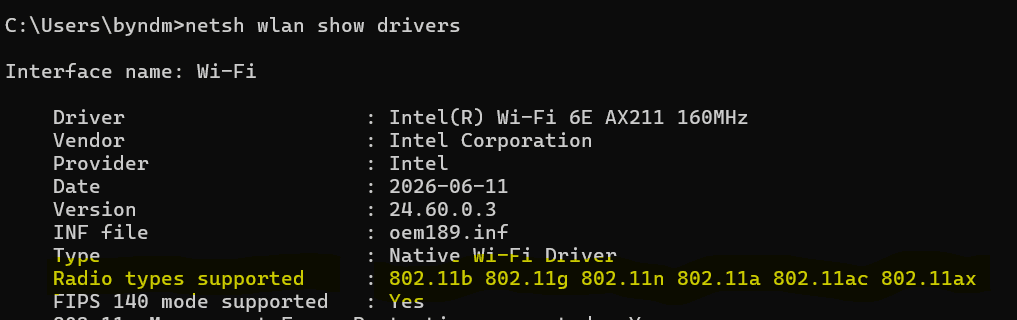
- Right-click the Start button and choose Terminal (or open Command Prompt).
- Type
netsh wlan show driversand press Enter. - Look for the line Radio types supported.
If you see 802.11a, 802.11ac, or 802.11ax in that list, your adapter can use 5 GHz. If you only see 802.11b, 802.11g, and 802.11n, it can’t — your options are a newer laptop or an inexpensive dual-band USB Wi-Fi adapter.
For 6 GHz, the bar is higher: your adapter has to be Wi-Fi 6E or Wi-Fi 7, and so does your router. Both ends have to speak 6 GHz before the band exists as an option at all.
So where is the setting?
It’s in the adapter’s advanced driver properties, reached through Device Manager. It takes about a minute:
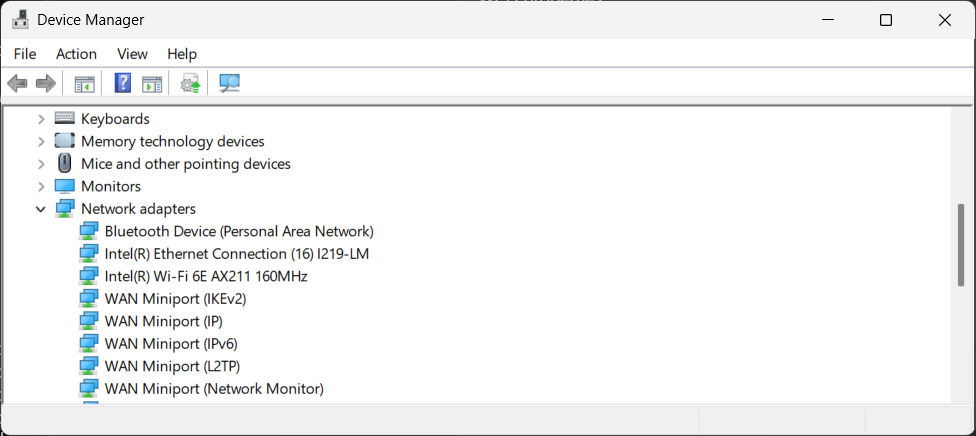
- Expand Network adapters.
- Right-click the Start button and choose Device Manager.
- Find your wireless adapter — the name usually includes its maker, such as Intel, Realtek, MediaTek, or Qualcomm. Right-click it and choose Properties.
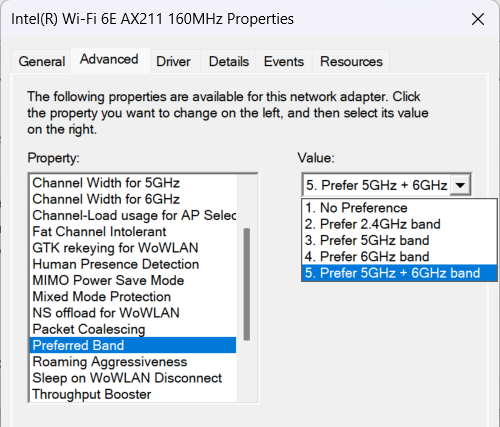
- Go to the Advanced tab.
- In the Property list on the left, find Preferred Band. (On some adapters it’s called Preferred band or Band Preference.)
- In the Value dropdown on the right, choose Prefer 5 GHz band.
- Click OK.
Your adapter will drop and reconnect. From now on, whenever both bands are available, it will reach for 5 GHz first and only fall back to 2.4 GHz when 5 GHz is genuinely out of range.
Got 6 GHz? You can prefer that instead — with one caveat
If the Value dropdown in step 6 also offers Prefer 6 GHz band, your adapter is Wi-Fi 6E or 7, and you have a decision to make. 6 GHz is the fastest, least crowded band you own — nobody else’s gear is on it yet. But it has the shortest range of the three, and walls cost it the most. The sensible split: if the PC lives in the same room as the router, or one room away, choose Prefer 6 GHz band. If it moves around the house, Prefer 5 GHz band is the better all-round pick. Either way it is still only a preference — the adapter falls back to the other bands when your first choice is out of range.
What if there’s no Preferred Band in the list?
You’re not imagining it — that list is written by the adapter’s driver, and not every driver offers the setting. Three things to try, in order:
- Update the driver from the manufacturer, not Windows Update. Download the latest driver for your adapter (or your laptop model) from Intel, Realtek, or your laptop maker’s support page, install it, and check the Advanced tab again. The setting often appears with a current driver.
- Look for a near-relative setting. Some adapters expose the same idea as a wireless mode property — setting 802.11a/b/g Wireless Mode (or similar) to prefer 802.11a/ac effectively favours 5 GHz.
- Fix it at the router instead. Log into your router and give the two bands separate network names (for example,
YourNetworkandYourNetwork-5G). Connect the PC to the 5 GHz name, then open the Wi-Fi list, click the 2.4 GHz name, and uncheck Connect automatically — or forget that network entirely. With only one band on offer, there’s nothing left to prefer wrongly.
One honest caveat: if your router uses a single network name with band steering turned on, the router has the final say over which band a device lands on, and it can overrule your adapter. Separate network names remove that conflict.
While you’re in there: stop the band-hopping
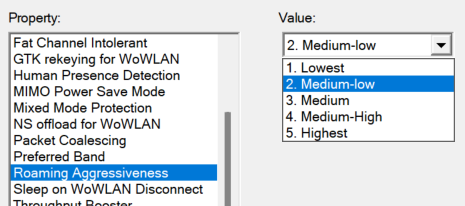
If your connection drops for a second or two at random moments, the adapter may be roaming — scanning for something better mid-session. In the same Advanced tab, find Roaming Aggressiveness (sometimes Roaming Sensitivity) and set it to Lowest. Your adapter will then hold onto the 5 GHz connection it’s got instead of going looking for trouble.
How do you prove it worked?
Don’t trust the setting — verify the band you’re actually on. Two ways:
In Settings: Open Settings → Network & internet → Wi-Fi, click your connected network, and look for Network band. You want it to say 5 GHz.
In Terminal: Run netsh wlan show interfaces and look at the Band and Channel lines. Channels 1 to 11 mean 2.4 GHz. Channel 36 or higher means 5 GHz — and you’ll usually see your receive and transmit rates jump with it. On 6 GHz there is no channel math to do — the Band line simply says 6 GHz.
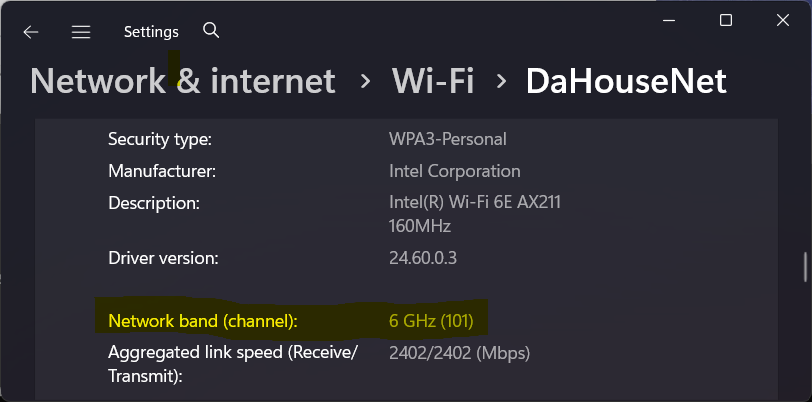
Run a speed test before and after, from the same chair, and compare. That before-and-after number is the whole point of the exercise.
When should you not do this?
When the PC is far from the router, or separated by several walls, a floor, or brick and concrete. A weak 5 GHz connection can be slower and flakier in real use than a strong 2.4 GHz one — this setting is a preference, not a guarantee, and the adapter will still fall back if 5 GHz drops out of range entirely. For a desktop or a laptop that mostly lives in one or two rooms near the router, prefer 5 GHz and don’t look back. For the laptop that roams the whole house and the backyard, leave the preference off and let it choose. 6 GHz is fussier still — prefer it only when the PC stays in or near the router’s room.
In summary
Windows picks the strongest signal, and strongest is not the same as fastest. Set Preferred Band to Prefer 5 GHz band — or Prefer 6 GHz band, if your gear offers it and your PC stays close to the router — in your adapter’s advanced properties, drop Roaming Aggressiveness to Lowest so it stays there, and confirm the result with netsh wlan show interfaces. Five minutes of digging through Device Manager, and your PC stops settling for the slow lane.

